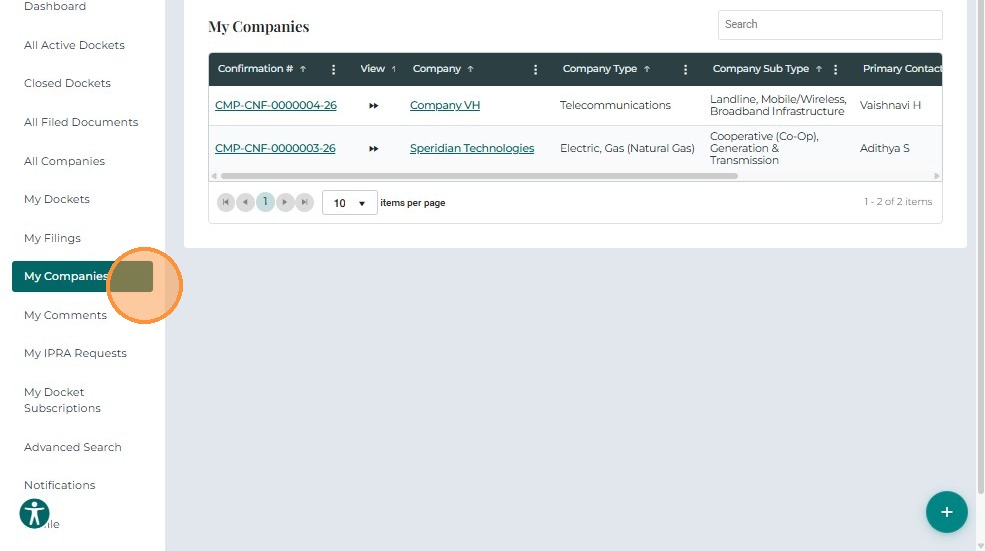
Request Company Access
The Company Management Access Request feature allows a Tier 2 user to obtain management rights for a company profile within the Docket Management System (CMS).
This may apply to:
- A newly registered company, or
- An existing company already active in the PRC database.
1. Access the Company Management Access Request Form
After signing in:
- From the Dashboard, click + Submit New at the bottom-right corner of the screen.
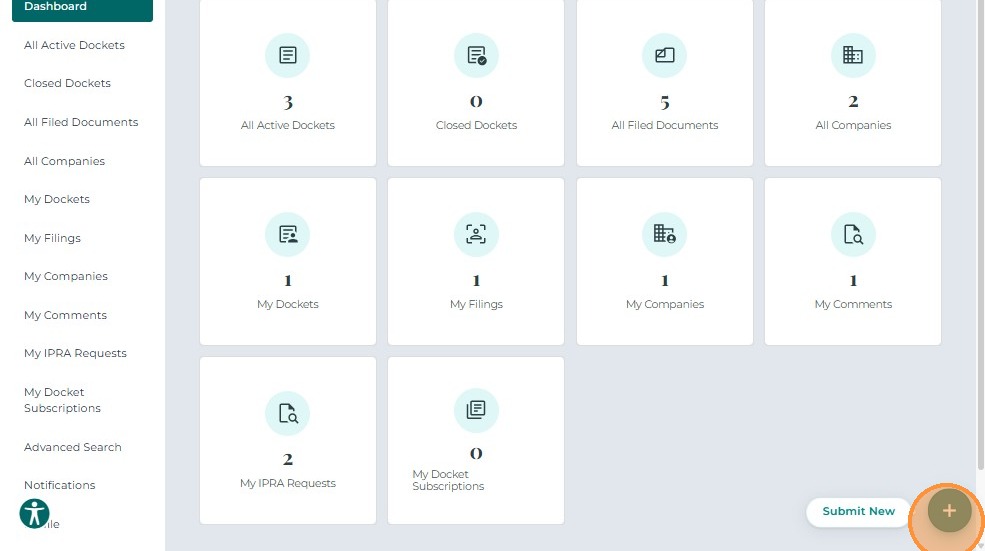
- In the pop-up menu, select Company Management Access Request.
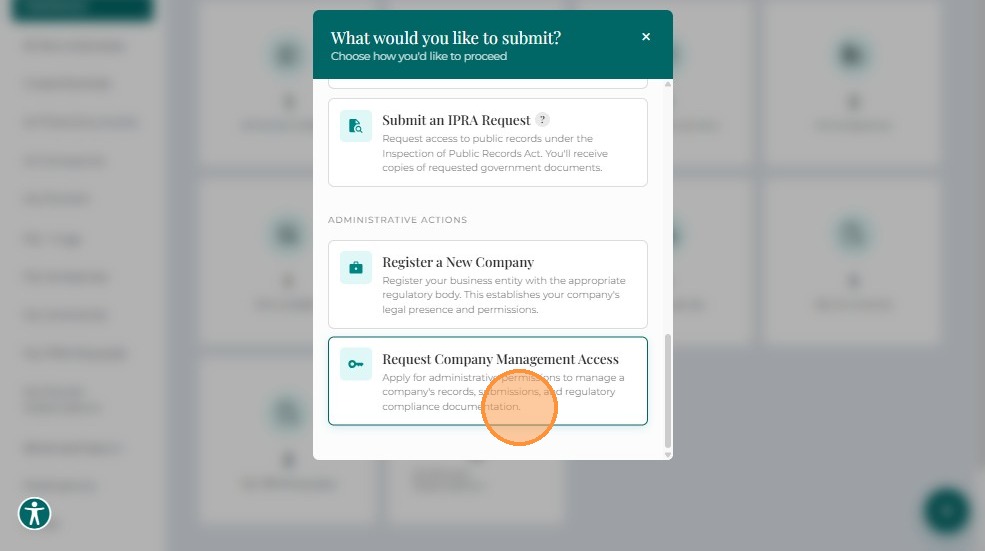
This opens the Company Management Access Request screen, where the user can specify the company and upload the required authorization documents.
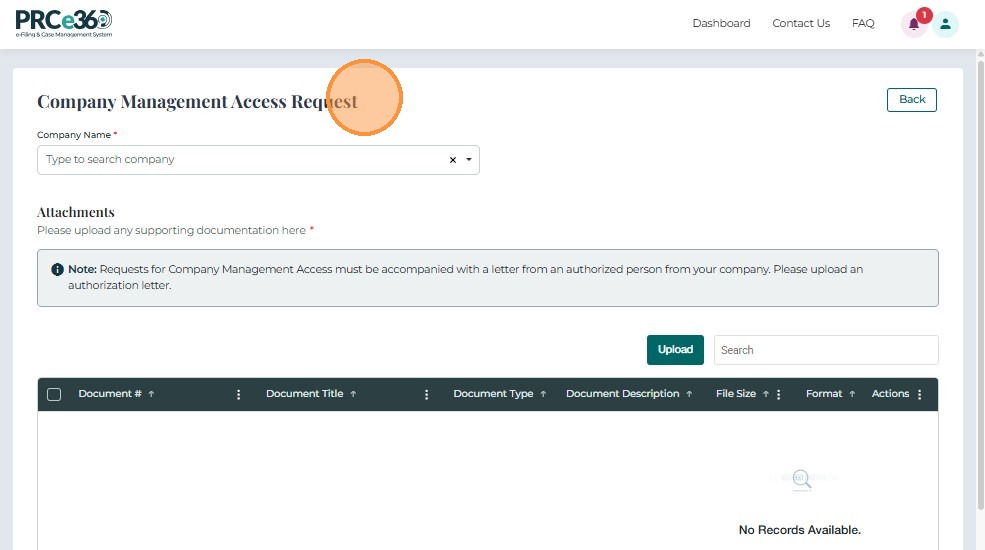
2. Company Information
Enter company details for which management access is requested.
- Company Name* – Search-enabled dropdown to locate and select the company record.
![Company Information fields]
3. Company Management Confirmation
Upload the necessary confirmation or authorization documents to verify your right to manage the company.
Grid Columns
| Column | Description |
|---|---|
| Document # | Auto-generated unique identifier; clicking opens the document viewer. |
| Document Title | Name of the uploaded document. |
| Document Type | Classification (e.g., Authorization, Compliance). |
| Document Description | Brief description of the file content. |
| File Size / Format | Displays file size and type (PDF, DOCX, etc.). |
| Confidential | Indicates whether the document is confidential. |
| Uploaded | Shows upload completion status. |
Actions: Use the ⋮ (Actions) icon to link or remove a document.
When linking, select the document record associated with the correct Docket ID.
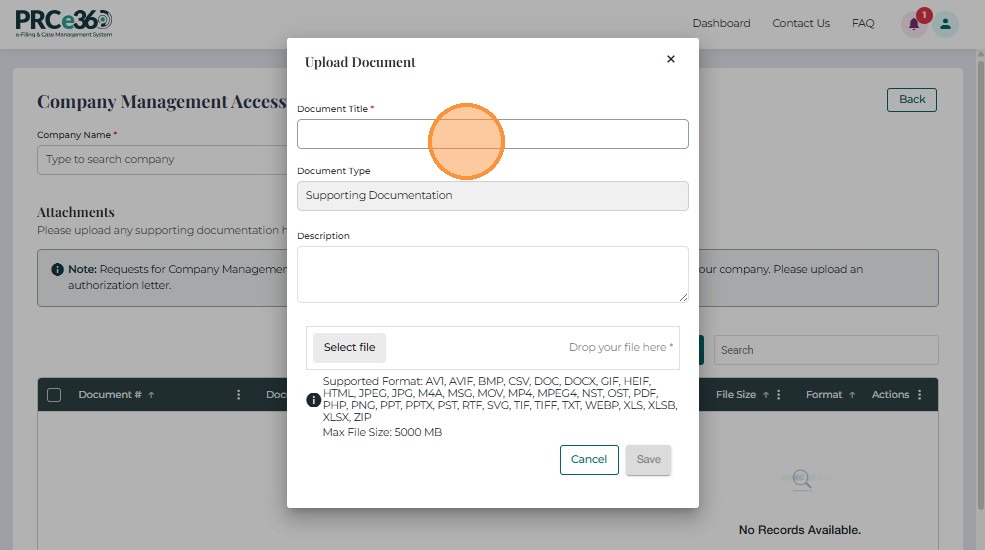
4. Upload a Document
Click Upload to open the document upload window.
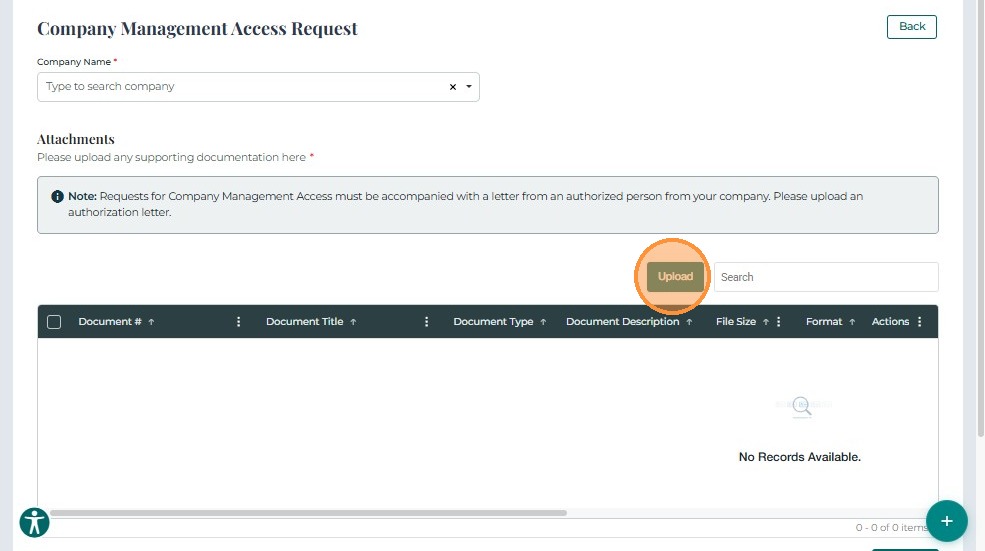
Complete all required fields before saving.
Fields:
- Document Title* – Mandatory text field for document name.
- Document Type* – will be auto filled as Supporting Documentation
- Description – Optional notes or context.
- Select File* – Browse or drag-and-drop to attach file.
- Save – Uploads and adds document to grid.
- Cancel – Exits without saving.
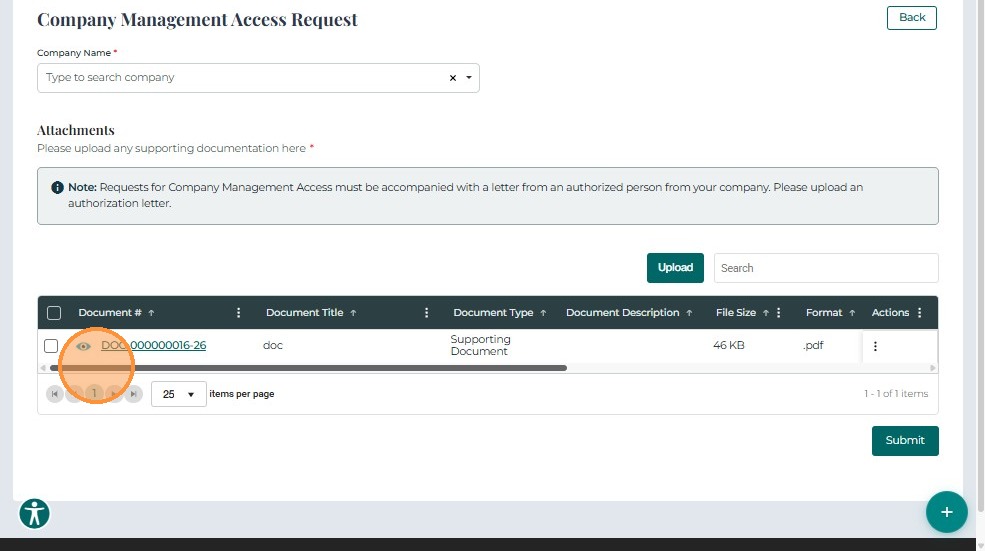
5. Submit the Request
After uploading the required documents:
- Review all entered information.
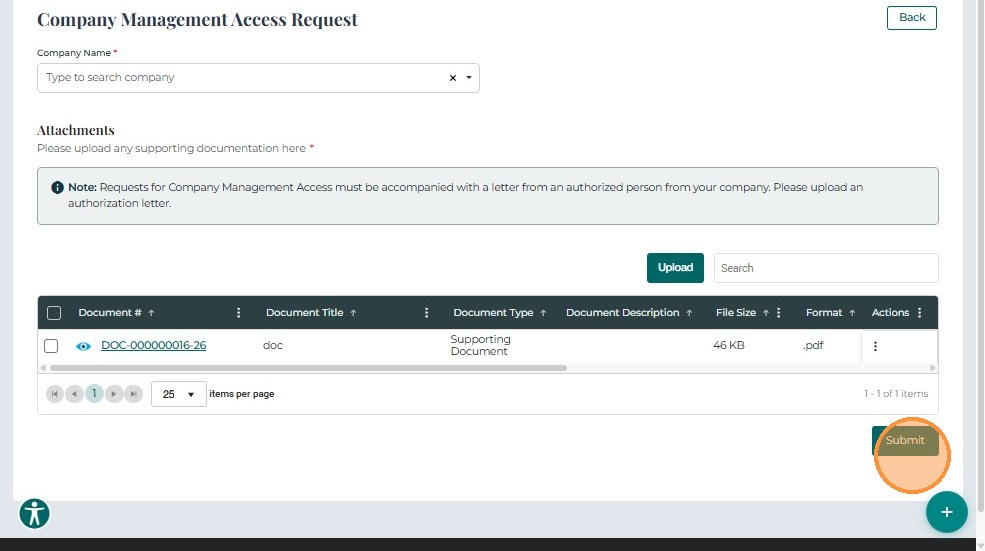
- Click Submit to send the management access request.
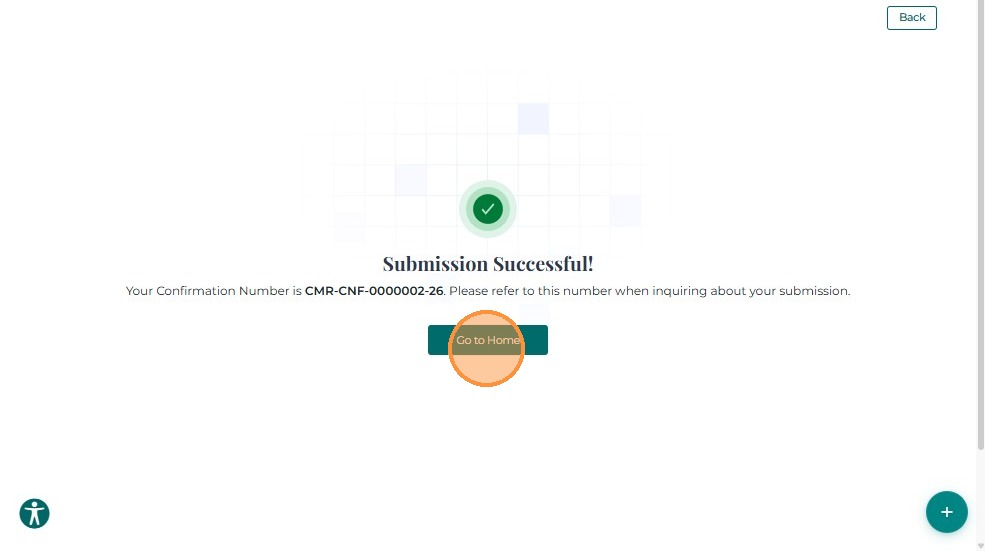
A confirmation message appears once the submission is successful.
6. Access Approval Process
After submission, the request is reviewed by internal PRC staff.
-
If Approved:
- An automated approval email is sent to the filer.
- The company appears in the My Companies section of the dashboard.
- Selecting the company name or confirmation ID opens the Company 360 page showing Active status.
-
If Rejected:
- A rejection email is automatically sent with the stated reason.
- The company record appears with Inactive status.